
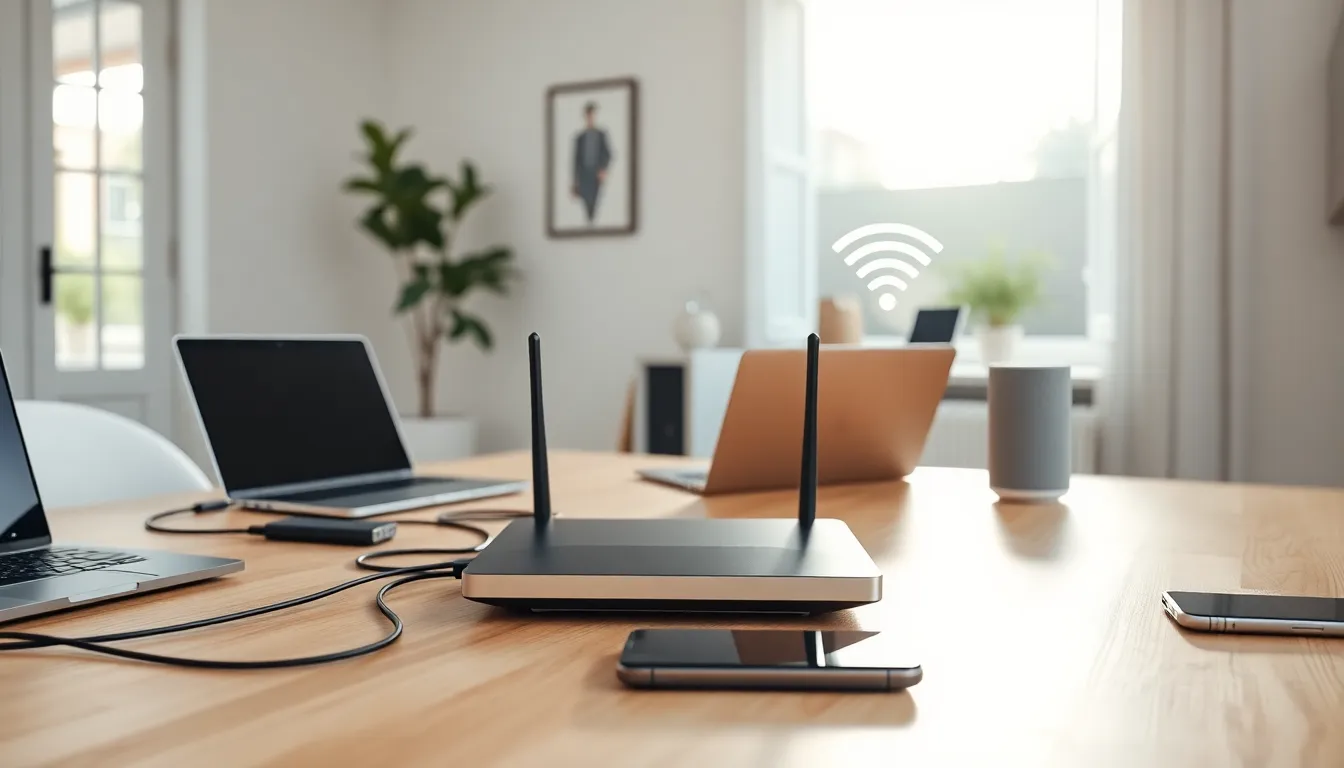

A solid home networking guide can save hours of frustration and keep every device running smoothly. Whether someone streams movies, works remotely, or games online, a reliable network makes all the difference. Most households now have over a dozen connected devices, from smartphones to smart thermostats, and they all compete for bandwidth.
Setting up a home network doesn’t require a tech degree. With the right equipment and a clear plan, anyone can build a fast, secure connection. This guide covers everything from the basics of how home networks work to practical steps for setup and optimization. By the end, readers will know exactly what they need and how to configure it properly.
Table of Contents
ToggleKey Takeaways
- A home networking guide helps you understand the three core components: a modem (connects to ISP), a router (distributes internet), and your connected devices.
- Invest in a Wi-Fi 6 router for better speed and multi-device performance, and consider a mesh system for larger homes with dead zones.
- Position your router centrally and elevated, away from walls, metal objects, and appliances that cause signal interference.
- Always secure your home network by using WPA3 or WPA2 encryption, changing default credentials, and setting up a separate guest network.
- Use the 5GHz band for streaming and gaming, and reserve the 2.4GHz band for smart devices located farther from the router.
- Regularly update your router’s firmware and monitor connected devices to maintain optimal performance and security.
Understanding the Basics of Home Networks
A home network connects devices so they can share data and internet access. At its core, every home network has three main components: a modem, a router, and connected devices.
The modem connects to the internet service provider (ISP). It translates the signal from the ISP into data that devices can use. Without a modem, there’s no internet connection.
The router distributes that internet connection to multiple devices. It creates a local network and assigns each device an IP address. Modern routers also provide Wi-Fi, so devices can connect wirelessly.
There are two types of connections in most home networks:
- Wired (Ethernet): Devices plug directly into the router using Ethernet cables. This offers the fastest, most stable connection.
- Wireless (Wi-Fi): Devices connect over radio waves. This is convenient but can be slower and less reliable than wired connections.
Most home networking setups use both. Desktop computers and gaming consoles often use Ethernet, while phones and tablets connect via Wi-Fi.
Understanding these basics helps when troubleshooting problems. If the Wi-Fi is slow but the modem lights look normal, the issue is probably with the router or signal interference, not the ISP.
Essential Equipment You Need
Building a reliable home network starts with the right gear. Here’s what most households need:
Modem
The modem is the gateway to the internet. ISPs often provide one, but buying a personal modem can save rental fees and improve performance. Look for a DOCSIS 3.1 modem for cable internet, it supports faster speeds and handles more traffic.
Router
The router is the heart of any home networking setup. A good router determines Wi-Fi range, speed, and how many devices can connect without slowdowns.
For most homes, a Wi-Fi 6 (802.11ax) router offers excellent speed and handles multiple devices well. Wi-Fi 6E routers add a 6GHz band for even less interference, though devices must support it.
Key specs to consider:
- Speed rating: Look for routers rated at least AC1750 or AX3000.
- Coverage area: Check the square footage rating. A 2,000 sq ft home needs a router rated for that range or higher.
- Ethernet ports: Four ports is standard: power users may want more.
Mesh Wi-Fi System (Optional)
Larger homes or spaces with thick walls often have Wi-Fi dead zones. A mesh system uses multiple units placed around the home to create seamless coverage. Brands like Eero, Google Nest Wi-Fi, and TP-Link Deco are popular choices.
Ethernet Cables
For wired connections, Cat6 cables work for most home networks. They support speeds up to 10 Gbps over short distances and cost only slightly more than older Cat5e cables.
Network Switch (Optional)
If a router doesn’t have enough Ethernet ports, a network switch adds more. This is useful for home offices or media rooms with several wired devices.
Setting Up Your Home Network Step by Step
With equipment ready, setting up a home network follows a straightforward process.
Step 1: Position the Router
Placement matters. Put the router in a central location, elevated if possible. Avoid closets, corners, and spots near large metal objects or appliances like microwaves, they interfere with Wi-Fi signals.
Step 2: Connect the Modem
Plug the modem into the coax or fiber outlet from the ISP. Connect the power cable and wait for the lights to stabilize. This usually takes one to two minutes.
Step 3: Connect the Router to the Modem
Use an Ethernet cable to connect the modem’s output port to the router’s WAN or Internet port. Power on the router and wait for it to boot up.
Step 4: Access Router Settings
Open a web browser and type the router’s IP address (commonly 192.168.1.1 or 192.168.0.1). Log in with the default credentials printed on the router or in the manual.
Step 5: Configure Wi-Fi Settings
Create a network name (SSID) and password. Avoid using personal information in the name. Choose WPA3 security if available, or WPA2 as a fallback, never use WEP, as it’s outdated and insecure.
Step 6: Connect Devices
On each device, find the new Wi-Fi network and enter the password. For wired devices, connect Ethernet cables to the router’s LAN ports.
Step 7: Test the Connection
Run a speed test on multiple devices. Check both download and upload speeds. If results are much lower than the ISP’s promised speeds, troubleshoot placement or interference.
Tips for Optimizing Performance and Security
A home network setup doesn’t end at installation. Regular optimization keeps things running well.
Improve Wi-Fi Performance
- Update firmware: Router manufacturers release updates that fix bugs and improve speed. Check for updates every few months.
- Choose the right band: Most routers offer 2.4GHz and 5GHz bands. The 5GHz band is faster but has shorter range. Use 5GHz for streaming and gaming: 2.4GHz works better for smart home devices farther from the router.
- Reduce interference: Other electronics, baby monitors, and neighboring Wi-Fi networks cause interference. Change the Wi-Fi channel in router settings if speeds drop during peak hours.
- Use Quality of Service (QoS): Many routers let users prioritize certain devices or activities. Enable QoS to give video calls or gaming priority over background downloads.
Strengthen Security
A secure home network protects personal data and keeps hackers out.
- Change default credentials: The admin username and password should be unique and strong.
- Enable network encryption: Always use WPA3 or WPA2. Check that this setting is active in router configuration.
- Create a guest network: Visitors and smart home devices should connect to a separate network. This isolates them from computers with sensitive data.
- Disable WPS: Wi-Fi Protected Setup has known vulnerabilities. Turn it off in router settings.
- Monitor connected devices: Periodically check which devices are on the network. Remove anything unfamiliar.
Following this home networking guide helps build a system that’s fast, reliable, and safe from common threats.


