
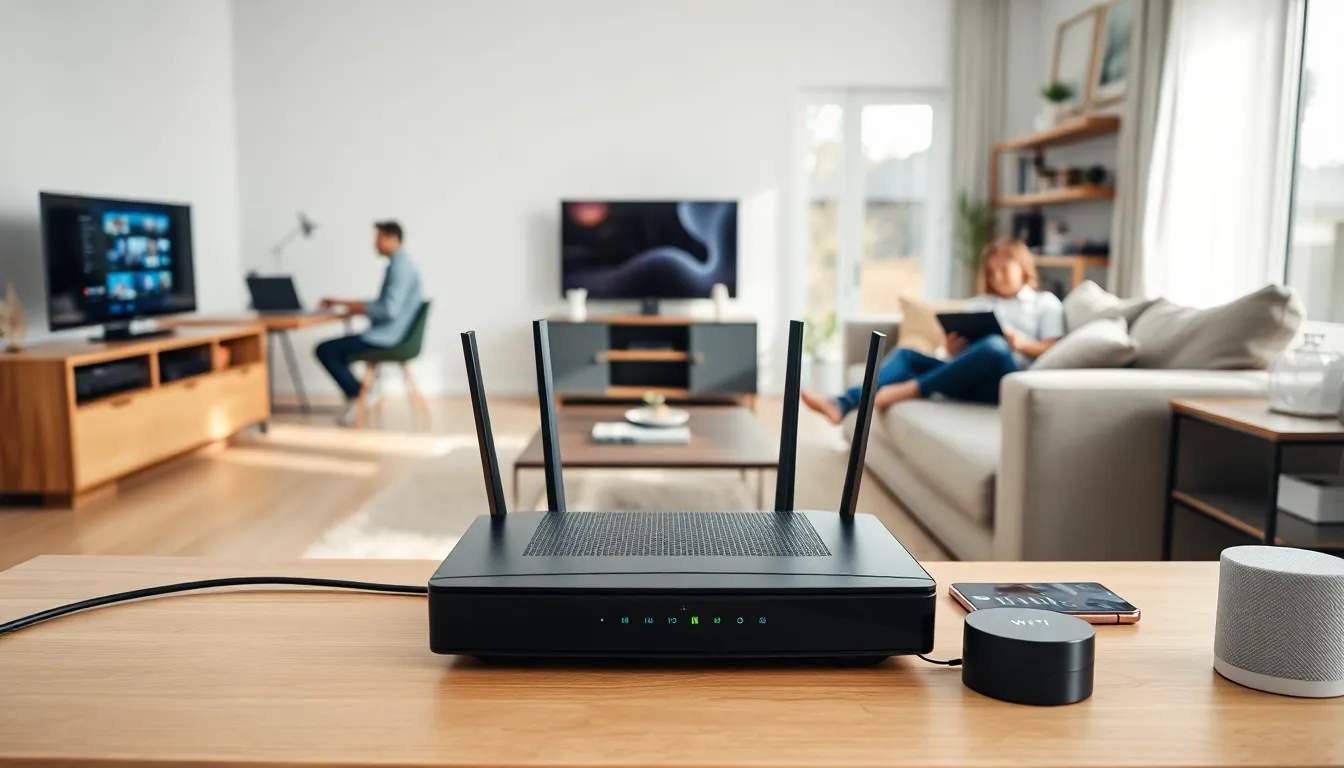

Home networking connects devices within a residence so they can share resources and communicate. A home network allows computers, smartphones, smart TVs, and printers to access the internet and exchange data. Understanding what is home networking helps homeowners make better decisions about their digital setup. This guide explains the core concepts, essential components, and setup process for anyone starting from scratch.
Table of Contents
ToggleKey Takeaways
- Home networking connects all your devices—computers, smartphones, smart TVs, and more—so they can share resources and access the internet together.
- A router serves as the central hub of your home network, distributing internet from your modem to all connected devices.
- Most households benefit from a hybrid setup that combines wired Ethernet connections for stationary devices and Wi-Fi for mobile gadgets.
- Position your router in a central, elevated location away from metal objects and thick walls to maximize Wi-Fi coverage.
- Secure your home network by setting a strong password, enabling WPA3 encryption, and keeping your router’s firmware updated.
- Use range extenders or mesh systems to eliminate Wi-Fi dead zones in larger homes.
Understanding the Basics of Home Networking
A home network is a group of devices connected together to share information and internet access. These devices include computers, tablets, gaming consoles, smart home gadgets, and phones. The network lets them communicate with each other and access online services.
Home networking works through a central device called a router. The router receives an internet signal from a modem and distributes it to connected devices. Each device on the network gets a unique address, called an IP address, which identifies it during data transfers.
There are two main types of home networks: local area networks (LANs) and wireless local area networks (WLANs). A LAN uses physical cables to connect devices. A WLAN uses radio waves to transmit data wirelessly. Most modern homes use a combination of both.
Home networking offers several practical benefits. Family members can share a single printer. Streaming services can send content to multiple TVs. Smart thermostats and security cameras can send alerts to phones. File sharing between computers becomes simple and fast.
The size and complexity of a home network depends on the household’s needs. A small apartment might need only a router and a few wireless connections. A larger home might require additional equipment to extend coverage to every room.
Key Components of a Home Network
Every home network requires specific hardware to function properly. Understanding these components helps users build a reliable setup.
Modem
A modem connects a home to the internet service provider (ISP). It translates the signal from the ISP into data that devices can use. Cable, DSL, and fiber connections each require different modem types. Some ISPs provide a modem, while others require customers to purchase their own.
Router
The router is the central hub of home networking. It receives data from the modem and sends it to the correct device. Routers also provide security features like firewalls and password protection. Modern routers support both wired and wireless connections.
Network Switch
A network switch expands the number of wired connections available. If a router has four Ethernet ports but a household needs eight, a switch provides additional ports. Switches are common in homes with multiple desktop computers or gaming setups.
Access Points and Range Extenders
Large homes often have areas where Wi-Fi signals weaken. Access points connect to the router via cable and broadcast a wireless signal in dead zones. Range extenders pick up the existing Wi-Fi signal and rebroadcast it. Mesh systems use multiple units to create seamless coverage throughout a home.
Ethernet Cables
Ethernet cables provide fast, stable wired connections. Category 5e and Category 6 cables are common choices for home networking. Wired connections offer lower latency than wireless, making them ideal for gaming and video conferencing.
Network-Attached Storage (NAS)
A NAS device stores files that multiple users can access over the network. Families use NAS systems to back up photos, store movies, and share documents without relying on cloud services.
Wired vs. Wireless Home Networks
Choosing between wired and wireless connections affects network performance, convenience, and cost. Both options have distinct advantages.
Wired Home Networks
Wired networks use Ethernet cables to connect devices directly to the router or switch. This method provides the fastest and most stable connections. Wired connections experience minimal interference and offer consistent speeds.
Professional gamers and remote workers often prefer wired home networking. The low latency reduces lag during video calls and online gaming. Wired connections also handle large file transfers efficiently.
The drawback is installation difficulty. Running cables through walls and floors requires planning and effort. Devices must stay near Ethernet ports, limiting mobility.
Wireless Home Networks
Wireless networks transmit data using radio frequencies. Wi-Fi allows devices to connect without physical cables. Modern Wi-Fi standards like Wi-Fi 6 and Wi-Fi 6E deliver faster speeds and better performance with multiple devices.
Wireless home networking offers flexibility. Users can move laptops and phones freely throughout the house. Smart devices like doorbells and speakers depend on Wi-Fi since they lack Ethernet ports.
Wireless networks face challenges from interference. Walls, appliances, and neighboring networks can weaken signals. Distance from the router also affects connection quality.
The Best Approach
Most households benefit from a hybrid setup. Stationary devices like desktop computers and gaming consoles connect via Ethernet. Mobile devices and smart home gadgets use Wi-Fi. This combination maximizes both speed and convenience.
How to Set Up Your Home Network
Setting up a home network involves several straightforward steps. Even beginners can complete the process with basic equipment and a little patience.
Step 1: Position the Modem and Router
Place the modem near the cable or fiber connection point. Connect the router to the modem using an Ethernet cable. Position the router in a central location, elevated off the floor. Avoid placing it near metal objects or thick walls that block signals.
Step 2: Configure the Router
Access the router’s settings through a web browser or mobile app. Create a unique network name (SSID) that identifies the home network. Set a strong password using a mix of letters, numbers, and symbols. Enable WPA3 encryption if the router supports it.
Step 3: Connect Wired Devices
Plug Ethernet cables into the router’s LAN ports. Connect the other ends to computers, gaming consoles, or smart TVs. Wired devices should recognize the connection immediately.
Step 4: Connect Wireless Devices
On each wireless device, open the Wi-Fi settings and locate the network name. Enter the password created during router configuration. The device will join the home network and gain internet access.
Step 5: Extend Coverage if Needed
Test the Wi-Fi signal in every room. If certain areas have weak reception, add a range extender or mesh system. Position these devices between the router and the problem areas.
Step 6: Secure the Network
Update the router’s firmware regularly. Disable remote management unless necessary. Consider creating a guest network for visitors. This keeps the main home network separate and more secure.


