
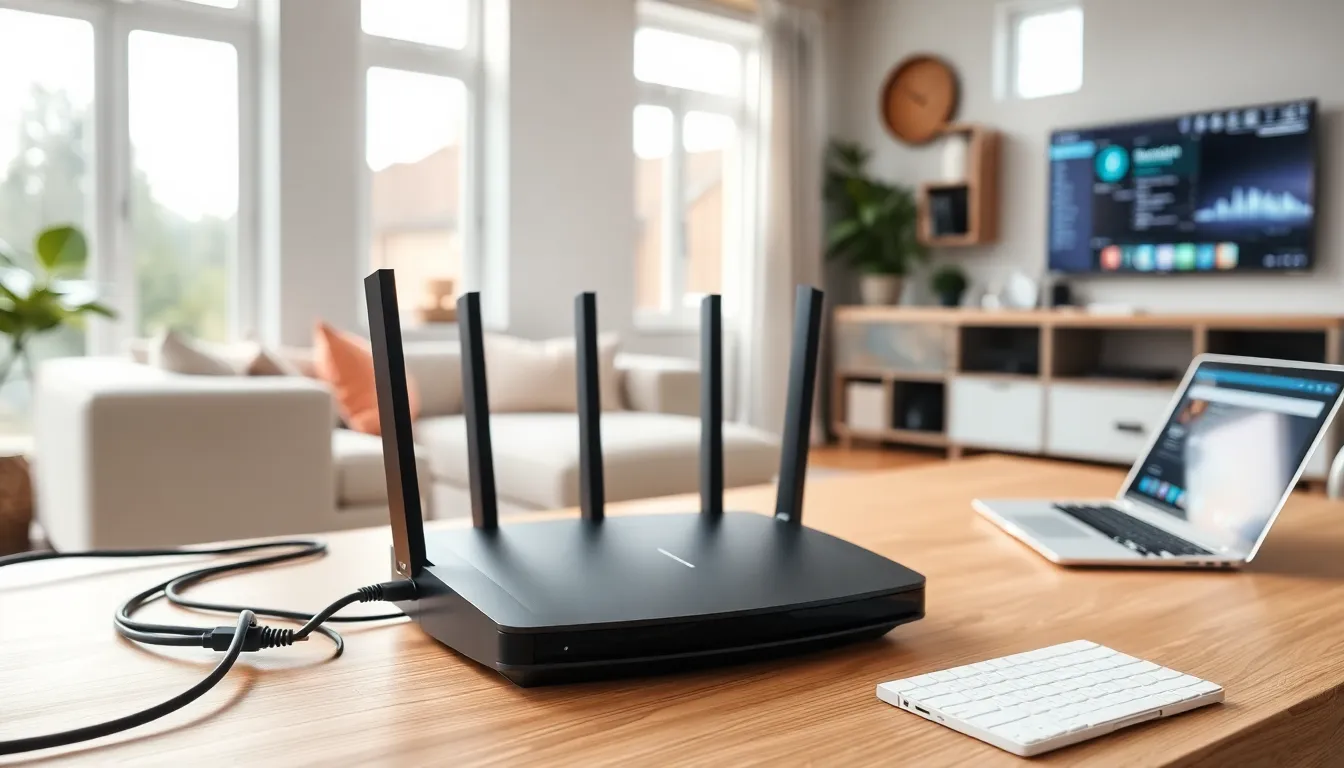

The best home networking setup delivers fast, stable internet to every device in a household. Whether someone streams 4K movies, works remotely, or games online, a strong network makes all the difference. Poor connectivity frustrates users and limits productivity. This guide covers everything needed to build a reliable home network, from understanding specific needs to selecting the right equipment and solving common problems. Readers will learn practical strategies to improve speed, reduce dead zones, and keep their connections running smoothly.
Table of Contents
ToggleKey Takeaways
- The best home networking setup starts with assessing your household’s device count, usage patterns, and home size before purchasing equipment.
- Mesh systems outperform single routers in larger homes by creating seamless Wi-Fi coverage across multiple rooms.
- Use wired Ethernet connections for stationary devices like gaming consoles and smart TVs to achieve faster, more reliable speeds.
- Place your router centrally and elevated to maximize coverage, and use the 5 GHz or 6 GHz bands for faster performance.
- Regularly update router firmware, enable Quality of Service (QoS), and restart your router weekly to maintain optimal network performance.
- Common issues like dead zones and buffering can be solved by adding mesh nodes, changing Wi-Fi channels, or prioritizing bandwidth for critical devices.
Understanding Your Home Networking Needs
Before buying any equipment, it helps to assess what the network actually needs to do. Every household has different demands.
Start by counting connected devices. Modern homes often have 15 to 25 devices online at once, smartphones, laptops, smart TVs, gaming consoles, security cameras, and smart home gadgets. Each device competes for bandwidth.
Next, consider usage patterns. A family that streams Netflix on multiple screens while someone games online needs more bandwidth than a single person checking email. Video calls require stable upload speeds. Large file downloads demand consistent throughput.
Home size matters too. A small apartment might work fine with a single router. A two-story house with thick walls probably needs a mesh system or multiple access points. Square footage and building materials affect signal strength.
Internet plan speed also plays a role. The best home networking equipment won’t fix a slow ISP connection. Users should check their current plan and consider upgrading if devices struggle even when close to the router.
Finally, think about future growth. Smart home devices keep multiplying. A network built today should handle tomorrow’s additions without a complete overhaul.
Essential Home Networking Equipment
Building the best home networking setup requires the right hardware. Here’s what matters most.
Routers and Mesh Systems
The router serves as the network’s central hub. It connects to the modem and broadcasts Wi-Fi signals throughout the home. Modern routers support Wi-Fi 6 (802.11ax) or Wi-Fi 6E, which offer faster speeds and better performance with many devices.
For larger homes, mesh systems outperform single routers. A mesh network uses multiple nodes placed around the house. These nodes communicate with each other and create seamless coverage. Users move from room to room without dropped connections. Popular options include systems from Eero, Google Nest, and TP-Link Deco.
When choosing a router or mesh system, check the following specs:
- Speed rating: Look for at least AX3000 for typical households
- Band support: Tri-band systems handle more devices better than dual-band
- Ethernet ports: Useful for wired connections to desktops or gaming consoles
- Coverage area: Match the rated coverage to the home’s square footage
Wired vs. Wireless Connections
Wi-Fi offers convenience, but wired Ethernet connections deliver more reliable performance. For the best home networking results, use Ethernet cables for stationary devices that need consistent speeds.
Desktops, gaming consoles, smart TVs, and streaming devices benefit from wired connections. Ethernet eliminates interference and latency issues that wireless signals face. Cat6 or Cat6a cables support speeds up to 10 Gbps over short distances.
Wireless works well for mobile devices, laptops moving between rooms, and smart home gadgets spread throughout the house. A good strategy combines both, wire what stays put and use Wi-Fi for everything else.
Some users run Ethernet cables through walls during renovations. Others use powerline adapters or MoCA adapters (which use coaxial cable) to extend wired connections without new wiring.
Tips for Optimizing Your Home Network Performance
Even the best home networking hardware underperforms without proper setup. These optimization tips boost speed and reliability.
Place the router centrally. Routers broadcast signals in all directions. Placing one in a corner wastes half its coverage. A central location on the main floor usually works best. Keep it elevated, on a shelf or mounted on a wall, rather than on the floor.
Reduce interference. Microwaves, cordless phones, baby monitors, and Bluetooth devices can interfere with Wi-Fi signals. Keep the router away from these items. Thick walls, metal objects, and aquariums also block signals.
Use the 5 GHz or 6 GHz bands. Most routers broadcast on both 2.4 GHz and 5 GHz frequencies. The 2.4 GHz band travels farther but runs slower and faces more interference. The 5 GHz band offers faster speeds for devices within range. Wi-Fi 6E adds a 6 GHz band with even less congestion.
Update firmware regularly. Router manufacturers release updates that fix bugs, patch security holes, and improve performance. Check for updates monthly or enable automatic updates if available.
Set up Quality of Service (QoS). Many routers let users prioritize certain devices or activities. This feature ensures video calls or gaming get bandwidth priority over background downloads.
Change the Wi-Fi channel. In crowded areas like apartments, neighboring networks compete on the same channels. Router admin panels or apps like Wi-Fi Analyzer help identify less crowded channels.
Restart the router periodically. A weekly restart clears memory and refreshes connections. Some users schedule automatic reboots during off-peak hours.
Common Home Networking Problems and Solutions
Even the best home networking setups encounter issues. Here are frequent problems and how to fix them.
Slow speeds in certain rooms. Dead zones happen when signals can’t reach distant areas. Solutions include adding a mesh node, installing a Wi-Fi extender, or running an Ethernet cable to that location. Moving the router closer to problem areas sometimes helps.
Devices keep disconnecting. This often points to interference or an overloaded router. Try changing the Wi-Fi channel, moving the router away from electronics, or upgrading to a router that handles more simultaneous connections. Rebooting the router also clears stuck connections.
Buffering during streaming. Buffering usually means insufficient bandwidth reaching the device. Check if other devices are downloading large files. Use QoS to prioritize streaming. If possible, connect the streaming device via Ethernet.
High latency in online games. Gamers need low ping times. Wired connections reduce latency significantly. Enabling gaming mode on compatible routers also helps. Close background applications that consume bandwidth.
Can’t connect new devices. Some routers limit the number of connected devices. Older routers struggle with newer device protocols. Check the router’s device limit and consider upgrading if it’s maxed out. Restarting the router often fixes temporary connection refusals.
Forgotten Wi-Fi password. Most routers let users view or reset the password through their admin panel. Access it by typing the router’s IP address (often 192.168.1.1 or 192.168.0.1) into a browser. The default login credentials appear on the router’s label.


