
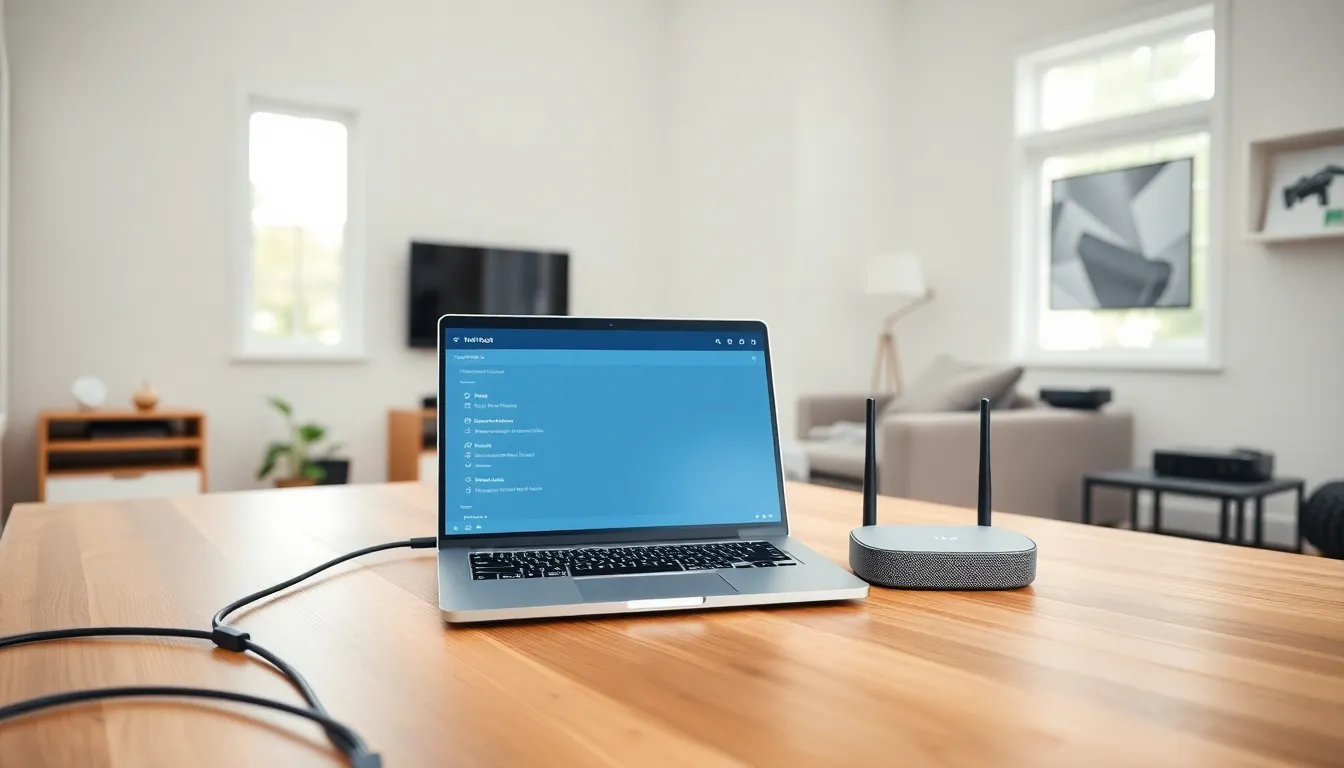

Home networking examples help households build reliable internet connections for work, entertainment, and daily life. A well-designed home network connects devices like computers, smart TVs, phones, and gaming consoles to the internet. The right setup depends on home size, device count, and specific usage needs.
This guide covers practical home networking examples for different situations. From basic setups to advanced gaming networks, each configuration serves a distinct purpose. Understanding these options makes it easier to choose the best network design for any household.
Table of Contents
ToggleKey Takeaways
- Home networking examples range from basic modem-router setups for small spaces to mesh systems that eliminate dead zones in larger homes.
- Separating smart home devices onto a guest network improves both security and overall network performance.
- Wired ethernet connections provide faster, more stable speeds for home offices and gaming—prioritize them over Wi-Fi when possible.
- Quality of Service (QoS) settings let you prioritize video calls and work applications to maintain productivity during heavy network use.
- For gaming and 4K streaming, use the 5 GHz Wi-Fi band and Cat6 cables to reduce latency and maximize bandwidth.
- Choose your home networking example based on your home size, device count, and specific needs like remote work or entertainment.
Basic Home Network Setup
A basic home network setup works well for apartments and small homes. This configuration requires minimal equipment and handles everyday internet tasks effectively.
Essential Components
The core equipment includes:
- Modem: Connects to the internet service provider (ISP)
- Router: Distributes the internet signal to devices
- Ethernet cables: Provide wired connections for stationary devices
Many ISPs provide a modem-router combo unit. This single device handles both functions and simplifies setup.
How It Works
The modem receives the internet signal from the ISP. The router then broadcasts a Wi-Fi signal throughout the home. Devices connect wirelessly or through ethernet cables.
For this home networking example, place the router in a central location. Avoid corners, closets, and areas near microwaves or cordless phones. These placements reduce signal interference.
Best For
Basic setups suit homes under 1,500 square feet with fewer than 10 connected devices. They handle web browsing, email, video calls, and standard-definition streaming without issues.
Mesh Network for Larger Homes
Larger homes often struggle with Wi-Fi dead zones. A mesh network solves this problem by using multiple access points to blanket the entire space with signal.
What Makes Mesh Different
Traditional routers broadcast from a single point. Mesh systems use two or more units that communicate with each other. They create one seamless network across the entire home.
Popular mesh systems include Google Nest Wi-Fi, Eero, and TP-Link Deco. These products offer easy setup through smartphone apps.
Setup Process
This home networking example requires:
- Connect the primary mesh unit to the modem
- Place secondary units throughout the home
- Use the manufacturer’s app to configure the system
Space mesh units about 30-40 feet apart. Each unit should have line-of-sight to at least one other unit for optimal performance.
Coverage Expectations
A three-unit mesh system typically covers 4,000-6,000 square feet. Multi-story homes benefit from placing one unit on each floor. This home networking example eliminates dead zones in basements, garages, and outdoor spaces.
Smart Home Network Configuration
Smart home devices require reliable network connections. A dedicated smart home network configuration keeps these devices running smoothly while protecting other network traffic.
Why Separate Networks Matter
Smart thermostats, cameras, lights, and doorbells stay connected 24/7. Each device adds traffic to the network. Older smart devices may also have security vulnerabilities.
Creating a separate network for smart devices isolates them from computers and phones. This improves both performance and security.
Setting Up a Guest Network
Most modern routers support guest networks. This home networking example uses the guest network feature:
- Access router settings through a web browser or app
- Enable guest network option
- Create a unique network name and password
- Connect all smart devices to this secondary network
Advanced Option: VLANs
Tech-savvy users can create Virtual Local Area Networks (VLANs). VLANs segment the network at a deeper level. They require managed switches and more configuration time.
This home networking example protects personal data while maintaining full smart home functionality. Security cameras and voice assistants operate on one network. Laptops and phones use another.
Home Office Network Setup
Remote work demands reliable internet connections. A proper home office network setup supports video conferencing, file transfers, and cloud applications without interruption.
Prioritize Wired Connections
Wi-Fi works for casual use. But wired ethernet connections provide faster and more stable speeds for work computers. Run an ethernet cable from the router to the home office whenever possible.
Powerline adapters offer an alternative. They transmit internet signals through electrical wiring. This avoids running long cables through the house.
Quality of Service Settings
QoS (Quality of Service) settings prioritize certain types of traffic. This home networking example configures QoS to favor:
- Video conferencing applications
- VPN connections
- Cloud storage sync
Access QoS through router settings. Assign high priority to work-related devices or applications.
Backup Internet Options
Work deadlines don’t wait for internet outages. Consider these backup solutions:
- Mobile hotspot through a smartphone
- Dedicated mobile hotspot device
- Secondary ISP connection
This home networking example ensures productivity continues even during service interruptions.
Gaming and Streaming Network Example
Gaming and 4K streaming demand high bandwidth and low latency. A gaming and streaming network example optimizes both factors for the best experience.
Bandwidth Requirements
Online gaming uses surprisingly little bandwidth, typically 3-6 Mbps. But, latency (ping) matters more than speed. Low latency means faster response times in games.
4K streaming requires 25+ Mbps per stream. A household streaming on multiple devices needs proportionally more bandwidth.
Ethernet for Gaming
Serious gamers should always use wired connections. Ethernet cables eliminate wireless interference and reduce latency by 10-30 milliseconds. This difference affects competitive gaming performance.
Run ethernet cables to gaming consoles and PCs. Use Cat6 or Cat6a cables for best results.
Router Placement and Settings
This home networking example benefits from:
- Gaming mode: Many routers include gaming optimization features
- 5 GHz band: Faster speeds and less interference than 2.4 GHz
- Port forwarding: Opens specific ports for better game connectivity
Position the router closer to gaming devices when wired connections aren’t possible. Reduce the number of walls between the router and gaming setup.
Dedicated Streaming Devices
Smart TVs have built-in streaming apps. But dedicated devices like Roku, Apple TV, or Fire TV often perform better. They receive regular updates and support newer Wi-Fi standards.


