
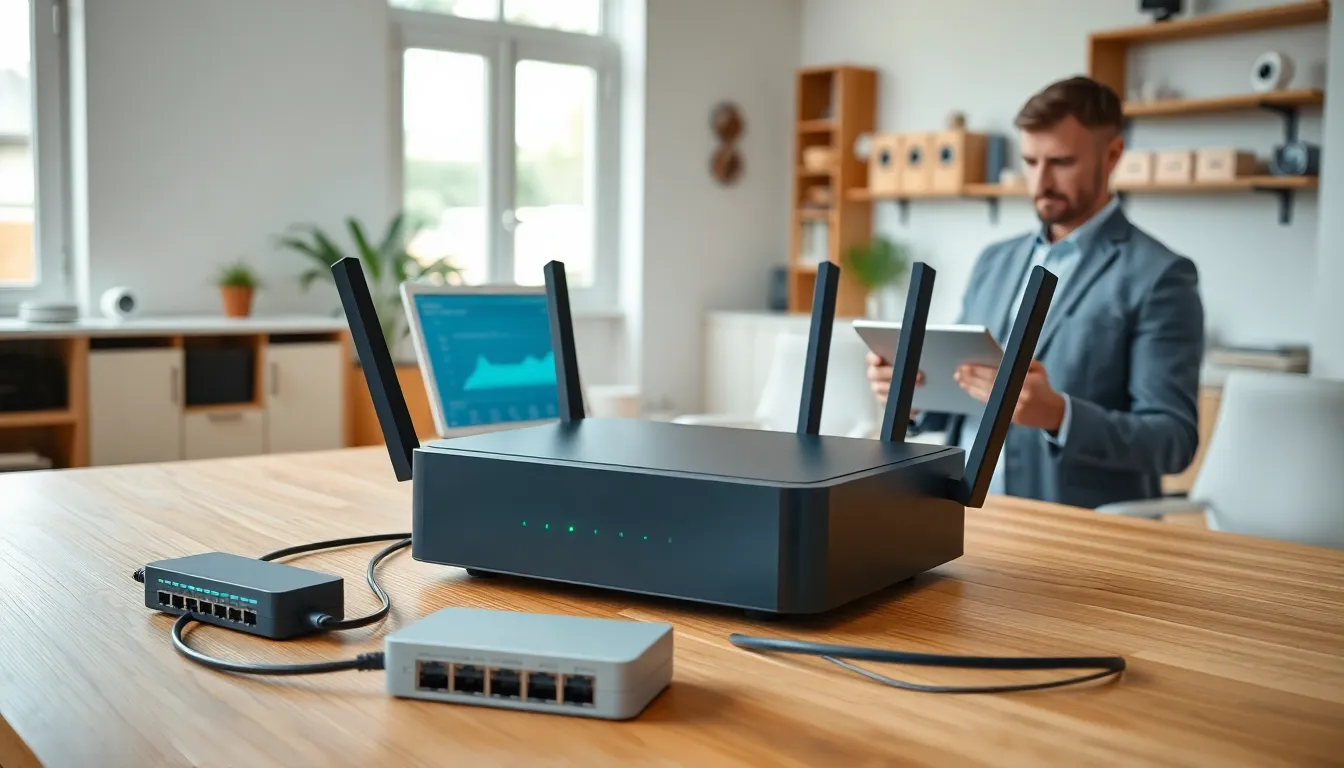

Strong home networking ideas can transform a sluggish internet experience into something fast and reliable. Most households now run dozens of connected devices, from smart TVs and gaming consoles to security cameras and thermostats. A weak network creates frustration. Buffering videos, dropped video calls, and dead zones in certain rooms are common complaints.
The good news? Better connectivity doesn’t require a complete overhaul. Strategic upgrades and smart configurations can dramatically improve performance. This guide covers practical steps to assess, upgrade, and optimize a home network. Readers will learn how to extend Wi-Fi coverage, set up wired connections where they matter most, and keep everything secure.
Table of Contents
ToggleKey Takeaways
- Start your home networking ideas with a simple audit—check your router’s age, map signal dead zones, and count connected devices to identify what needs improvement.
- Upgrading to a Wi-Fi 6 or Wi-Fi 6E router provides the biggest performance boost for households with multiple devices.
- Use a mesh network system or strategically placed Wi-Fi extenders to eliminate dead zones in larger homes.
- Wire critical devices like gaming consoles, desktop computers, and smart TVs with Ethernet cables for faster, more stable connections.
- Secure your network by changing default passwords, enabling WPA3 encryption, and setting up a separate guest network for IoT devices.
- Regularly update router firmware and review connected devices to maintain optimal performance and security.
Assess Your Current Network Setup
Before buying new equipment, take stock of what’s already in place. Many home networking ideas start with a simple audit.
First, identify the router model and its age. Routers older than five years likely lack modern features like Wi-Fi 6 support or adequate processing power for multiple devices. Check the ISP plan as well, sometimes slow speeds come from an outdated service tier rather than equipment issues.
Next, map out where devices connect. Note which rooms experience weak signals or frequent disconnections. A smartphone app like Wi-Fi Analyzer can show signal strength throughout the home. This data reveals dead zones and helps prioritize improvements.
Count the total number of connected devices. Smart home gadgets, phones, tablets, computers, and streaming devices all compete for bandwidth. A network supporting 30+ devices needs more capable hardware than one serving five.
Finally, run a speed test from different locations. Compare results to the advertised ISP speeds. Significant drops in certain areas indicate coverage problems. Consistent underperformance everywhere suggests the router or modem needs attention.
Upgrade Your Router and Equipment
A quality router serves as the foundation for any home networking setup. Upgrading this single piece of equipment often delivers the biggest performance gains.
Wi-Fi 6 (802.11ax) routers handle more simultaneous connections than older models. They also improve speeds and reduce latency. For households with many devices, this upgrade makes a noticeable difference. Wi-Fi 6E routers add access to the 6GHz band, which offers less interference and faster speeds for compatible devices.
Consider a mesh network system for larger homes. Mesh systems use multiple access points that work together seamlessly. Users move between rooms without signal drops. Brands like Eero, Google Nest, and TP-Link Deco offer reliable mesh options at various price points.
Don’t overlook the modem. If using a rental modem from the ISP, purchasing a compatible DOCSIS 3.1 modem can improve speeds and eliminate monthly rental fees. The investment typically pays for itself within a year.
For those with gigabit internet plans, ensure all equipment supports those speeds. A fast plan means nothing if the router caps out at 300 Mbps.
Optimize Wi-Fi Coverage Throughout Your Home
Even great routers struggle with poor placement. Smart positioning and strategic additions can extend coverage dramatically.
Place the main router in a central location. Walls, floors, and large appliances block signals. A router tucked in a basement corner won’t reach upstairs bedrooms effectively. Elevating the router, on a shelf rather than the floor, improves coverage.
Mesh systems solve most coverage problems, but they’re not the only option. Wi-Fi extenders cost less and work well for targeting specific dead zones. Powerline adapters use electrical wiring to carry network signals, which helps in homes where running cables isn’t practical.
Adjust router settings for better performance. Many routers default to congested channels. Switching to less crowded channels reduces interference from neighbors’ networks. The 5GHz band offers faster speeds but shorter range. The 2.4GHz band reaches farther but delivers slower speeds. Using both bands strategically, a feature called band steering, helps devices connect optimally.
Schedule a firmware update check monthly. Router manufacturers release updates that fix bugs and improve security. Outdated firmware can cause performance issues and leave networks vulnerable.
Create a Wired Backbone for Critical Devices
Wi-Fi offers convenience, but Ethernet cables deliver faster, more stable connections. Smart home networking ideas include wiring key devices directly.
Desktop computers, gaming consoles, and smart TVs benefit most from wired connections. These devices don’t move and often demand high bandwidth. A single Ethernet cable eliminates Wi-Fi interference issues entirely.
For serious gamers or remote workers, wired connections reduce latency significantly. Video calls stay stable. Online games respond instantly. Large file transfers complete faster.
Running Ethernet cables through walls requires some effort, but the results justify it. Alternatively, flat Ethernet cables hide easily under carpets and along baseboards. Cable management clips keep things tidy.
A network switch expands available Ethernet ports. Connect the switch to the router, then plug multiple devices into the switch. This setup works well for home offices or entertainment centers with several wired devices.
MoCA adapters offer another option. These devices use existing coaxial cable (the same cables for cable TV) to create wired network connections. They’re useful in homes already wired with coax but lacking Ethernet runs.
Secure and Organize Your Network
A fast network means little if it’s vulnerable to intruders or cluttered with forgotten devices.
Change default router passwords immediately. Factory passwords are publicly known and easy targets. Create a strong, unique password for both the Wi-Fi network and the router’s admin panel.
Enable WPA3 encryption if the router supports it. WPA3 provides stronger security than older standards. At minimum, use WPA2, never leave a network open or use the outdated WEP protocol.
Set up a guest network for visitors and IoT devices. Guest networks keep smart home gadgets separate from computers and phones containing sensitive data. If a smart device gets compromised, the main network stays protected.
Regularly review connected devices. Remove anything unrecognized. Old phones, tablets guests used once, or smart devices no longer in use clutter the network and could pose security risks.
Consider parental controls and quality of service (QoS) settings. QoS prioritizes bandwidth for important activities like video calls over less critical tasks. Parental controls manage screen time and content access for children’s devices.
Label cables and document the setup. Future troubleshooting becomes much easier with clear records of what connects where.


