
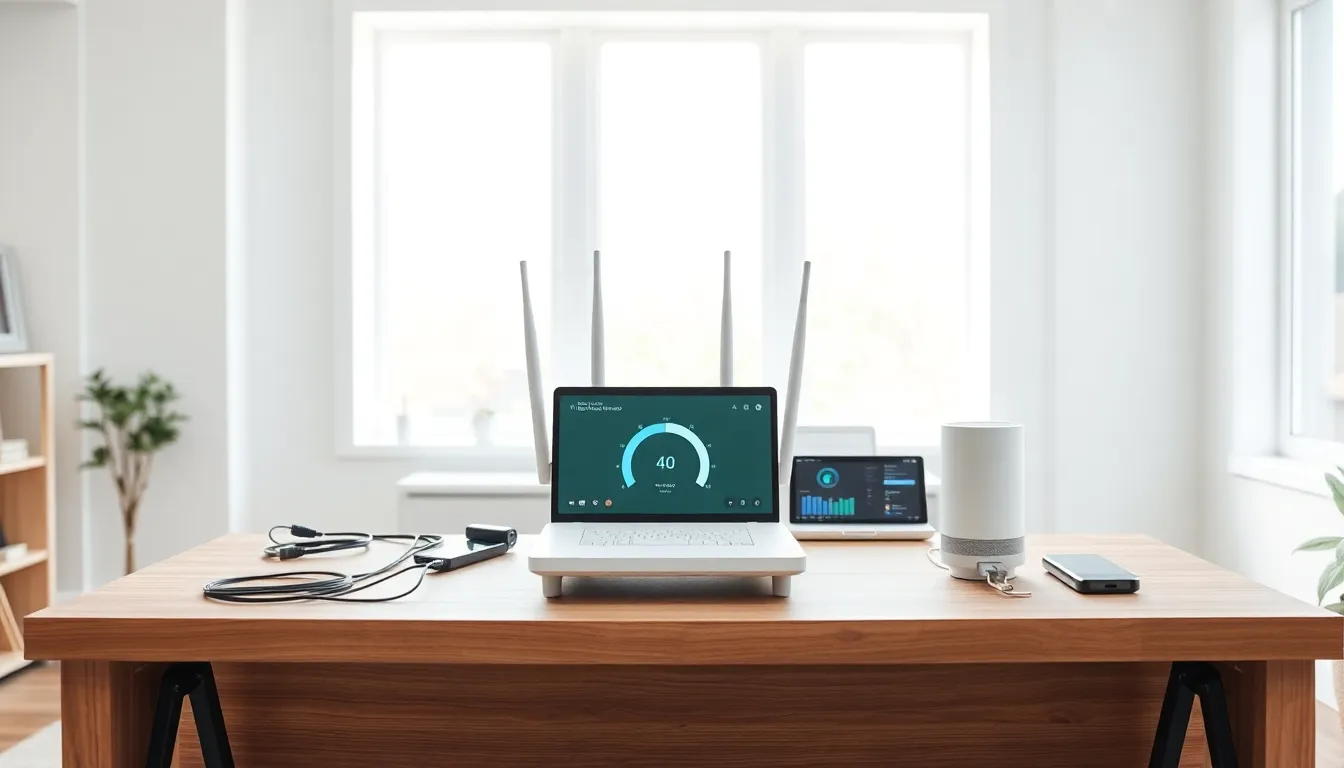

A slow or unreliable internet connection can disrupt work, streaming, and daily life. These home networking tips help users optimize their setup for better speed and reliability. Whether the issue is dead zones, buffering, or security concerns, small changes often produce significant results. This guide covers router placement, network security, device management, and equipment upgrades. Each section offers practical advice that anyone can apply without technical expertise.
Table of Contents
ToggleKey Takeaways
- Place your router in a central, elevated location away from walls, metal objects, and appliances for the best Wi-Fi coverage.
- Secure your home network with WPA3 or WPA2 encryption, strong passwords, and a separate guest network to protect your data.
- Use Quality of Service (QoS) settings to prioritize bandwidth for critical devices like work laptops or gaming consoles.
- Connect high-demand devices like gaming consoles and streaming boxes via Ethernet for stable, maximum-speed performance.
- Consider upgrading to a Wi-Fi 6 router or mesh network system if your equipment is outdated or you have coverage dead zones.
- These home networking tips can significantly improve speed, reliability, and security without requiring technical expertise.
Choose the Right Router Placement
Router placement directly affects Wi-Fi performance. Many people hide their router in a closet or behind furniture, but this limits signal strength. The best home networking tips start with positioning.
Central Location Matters
A router works best at the center of a home. Signals travel outward in all directions, so a central spot distributes coverage evenly. Placing the router on a main floor, rather than a basement, also improves reach to upper levels.
Height and Obstacles
Routers perform better when elevated. A shelf or mounted position beats a floor location. Walls, appliances, and metal objects block signals. Keep the router away from microwaves, cordless phones, and large metal surfaces.
Fish tanks and mirrors can also interfere with Wi-Fi signals. Even baby monitors operating on similar frequencies may cause problems. Testing different spots with a speed test app helps identify the optimal location.
Antenna Position
For routers with external antennas, angle them differently. One vertical and one horizontal antenna can improve coverage across multiple floors. This simple adjustment extends signal reach without any cost.
Secure Your Network Properly
An unsecured network invites problems. Neighbors or strangers can steal bandwidth, slow connections, and access personal data. Strong security is one of the most important home networking tips.
Use WPA3 or WPA2 Encryption
WPA3 offers the strongest protection currently available. If the router doesn’t support WPA3, WPA2 remains a solid choice. Avoid WEP encryption, it’s outdated and easily cracked.
Create Strong Passwords
A weak password defeats the purpose of encryption. Use at least 12 characters with a mix of letters, numbers, and symbols. Avoid obvious choices like “password123” or the street address.
Change the default router login credentials too. Many routers ship with “admin” as both username and password. Hackers know these defaults and exploit them regularly.
Hide the Network Name (SSID)
Broadcasting the network name isn’t required. Hiding the SSID adds a layer of obscurity. Authorized users can still connect by entering the network name manually.
Enable a Guest Network
A guest network separates visitors from primary devices. Friends can access the internet without gaining entry to smart home devices, computers, or printers. Most modern routers include this feature in their settings.
Manage Connected Devices and Bandwidth
Every connected device shares available bandwidth. Smartphones, tablets, laptops, smart TVs, and IoT gadgets all compete for resources. Managing these devices improves overall performance.
Audit Connected Devices
Most router interfaces show connected devices. Review this list regularly. Unknown devices might indicate unauthorized access or forgotten gadgets still pulling bandwidth. Remove anything unfamiliar.
Prioritize Critical Devices
Quality of Service (QoS) settings let users prioritize specific devices or applications. A work laptop or gaming console can receive bandwidth priority over a background device. This home networking tip prevents lag during important activities.
Limit Background Downloads
Automatic updates on phones, computers, and gaming consoles consume bandwidth silently. Scheduling updates for off-peak hours, like late night, keeps connections fast during active use.
Use Ethernet for High-Demand Devices
Wi-Fi works great for most purposes, but wired connections outperform wireless every time. Gaming consoles, desktop computers, and streaming boxes benefit from Ethernet cables. The connection stays stable and delivers maximum speeds.
Consider Mesh Networks
Large homes often have dead zones that a single router can’t cover. Mesh systems use multiple access points to blanket the entire space with consistent coverage. They’re more expensive than range extenders but deliver better results.
Upgrade Your Equipment When Necessary
Old equipment limits performance regardless of the internet plan. A five-year-old router may not support current Wi-Fi standards or handle modern device loads.
Check Your Router’s Age and Standards
Wi-Fi 6 (802.11ax) routers handle more devices and deliver faster speeds than older Wi-Fi 5 models. If the router predates 2019, an upgrade might be worthwhile. Newer routers also include better security features.
Evaluate Your Modem
The modem connects to the internet service provider. An outdated modem may bottleneck speeds even with a great router. Many ISPs offer modem upgrades, or users can purchase compatible models for better long-term value.
Match Equipment to Your Internet Plan
There’s no point paying for gigabit internet if the router maxes out at 300 Mbps. Check equipment specifications against the subscribed plan. Upgrading equipment often releases speed that was already paid for.
Replace Old Cables
Damaged or old Ethernet cables reduce speeds. Cat 5e cables support up to 1 Gbps, while Cat 6 handles 10 Gbps. Replacing worn cables is an inexpensive fix that sometimes solves persistent issues.


