
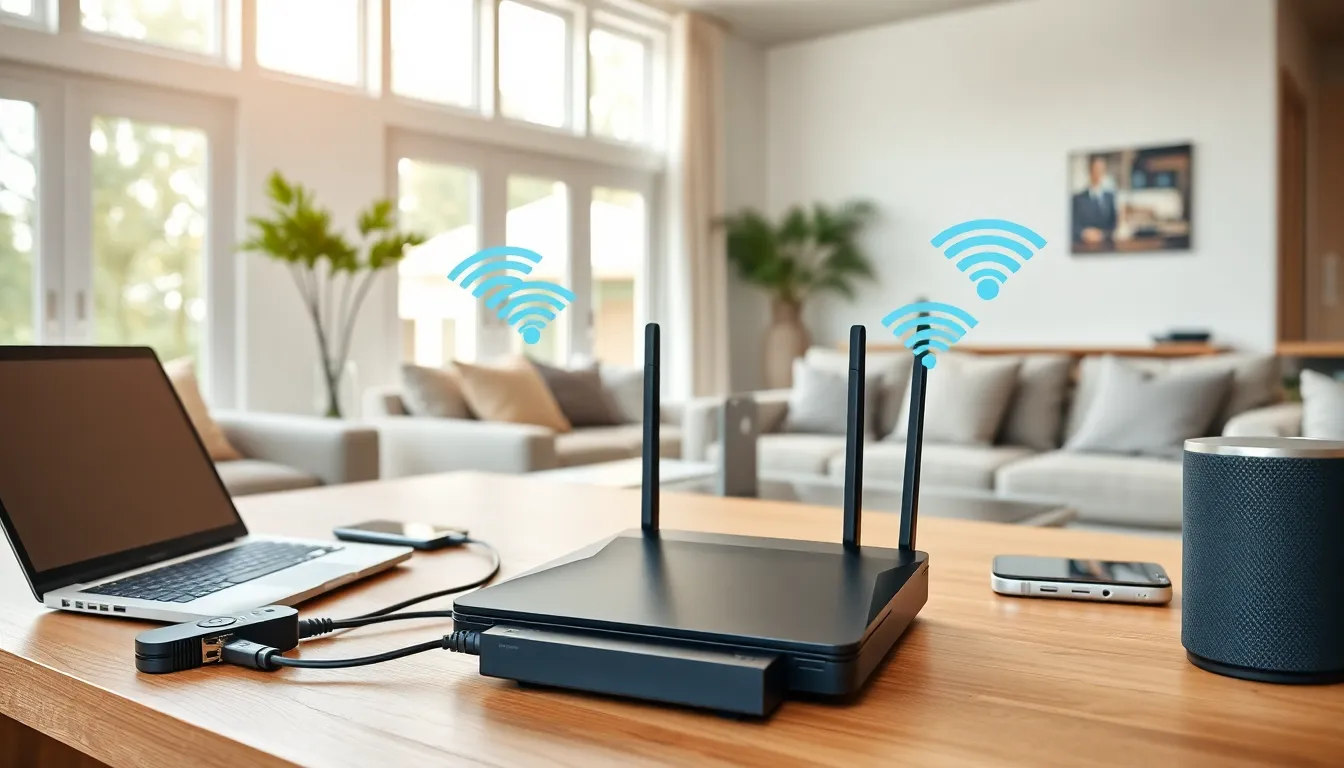

Home networking connects all your devices, smartphones, laptops, smart TVs, and more, into a single, unified system. A well-designed home network gives every device fast, reliable internet access while keeping your data secure. Whether you’re streaming 4K video, working from home, or managing smart home gadgets, the right network setup makes everything run smoother.
This guide walks through everything needed to build a solid home network. From understanding basic concepts to choosing equipment, setting things up, and fixing common problems, it’s all covered here. By the end, anyone can create a home network that handles today’s demands and grows with future needs.
Table of Contents
ToggleKey Takeaways
- A reliable home network requires three core components: a modem, a router, and connected devices working together seamlessly.
- Invest in a Wi-Fi 6 dual-band or tri-band router for faster speeds and better handling of multiple devices.
- Position your router centrally and elevated to maximize coverage and minimize dead zones throughout your home.
- Secure your home network with WPA3 encryption, a strong 12+ character password, and regular firmware updates.
- Use Ethernet cables for stationary devices like gaming consoles and desktop PCs to get the fastest, most stable connection.
- Troubleshoot slow speeds by restarting equipment, switching to the 5 GHz band, or adding a mesh system for larger homes.
Understanding the Basics of Home Networking
A home network is simply a group of devices connected together so they can share resources and communicate. At its core, every home network has three main components: a modem, a router, and the devices that connect to them.
The modem connects a home to the internet service provider (ISP). It translates the signal from the ISP into data that devices can use. The router then distributes that internet connection to multiple devices, either through Ethernet cables or Wi-Fi. Most modern setups use a combination modem-router unit provided by the ISP, though separate devices often perform better.
Home networks typically use two types of connections:
- Wired (Ethernet): Offers faster speeds and more stable connections. Ideal for gaming consoles, desktop computers, and smart TVs.
- Wireless (Wi-Fi): Provides flexibility and convenience. Best for smartphones, laptops, and tablets.
Understanding bandwidth matters too. Bandwidth measures how much data can transfer at once, think of it like a highway. More lanes mean more cars can travel simultaneously. A home network with multiple users streaming, gaming, and video calling needs higher bandwidth to avoid slowdowns.
IP addresses also play a key role. Every device on a home network gets assigned an IP address, which acts like a mailing address for data. The router manages these addresses automatically through something called DHCP (Dynamic Host Configuration Protocol).
Essential Equipment for Your Home Network
Building a reliable home network starts with the right equipment. Here’s what most households need:
Router
The router is the heart of any home network. Look for a dual-band or tri-band router that supports Wi-Fi 6 (802.11ax) for the best performance. Wi-Fi 6 handles more devices simultaneously and delivers faster speeds. For larger homes, a mesh network system uses multiple access points to eliminate dead zones.
Modem
If the ISP doesn’t require a specific modem, purchasing a compatible DOCSIS 3.1 modem often saves money on monthly rental fees. It also tends to perform better than ISP-provided equipment.
Ethernet Cables
Cat6 or Cat6a cables support speeds up to 10 Gbps and work well for wired connections. They’re inexpensive and worth running to stationary devices like gaming consoles or desktop PCs.
Network Switch
Homes with many wired devices benefit from a network switch. This device expands the number of available Ethernet ports beyond what the router provides.
Range Extenders or Mesh Systems
Large homes or those with thick walls may need additional coverage. Mesh systems provide seamless roaming between access points, while range extenders offer a budget-friendly alternative (though with some speed trade-offs).
Quality equipment costs more upfront but pays off through better performance and fewer headaches down the road.
Setting Up Your Home Network Step by Step
Setting up a home network doesn’t require technical expertise. Follow these steps for a smooth installation:
Step 1: Position the Router
Place the router in a central location, elevated if possible. Keep it away from walls, metal objects, and appliances like microwaves that cause interference. The goal is clear signal distribution throughout the home.
Step 2: Connect the Modem
Connect the modem to the ISP’s line (coaxial cable for cable internet, phone line for DSL, or fiber optic cable). Then connect the modem to the router using an Ethernet cable.
Step 3: Power Everything On
Turn on the modem first and wait for it to fully boot (usually 1-2 minutes). Then power on the router. Wait for all indicator lights to show stable connections.
Step 4: Configure the Router
Access the router’s admin panel through a web browser (the address is usually printed on the router or in the manual). Set up a unique network name (SSID) and a strong password. Avoid default names like “Netgear” or “Linksys” that reveal the router brand.
Step 5: Connect Devices
Connect devices to the new network using the SSID and password. For wired connections, plug Ethernet cables directly into the router or switch.
Step 6: Test the Connection
Run a speed test on multiple devices to confirm the home network delivers expected performance. Check coverage in different rooms to identify any weak spots.
Securing Your Home Network
An unsecured home network invites hackers and freeloaders. These security measures protect both data and bandwidth:
Use Strong Encryption
Enable WPA3 encryption if the router supports it. If not, WPA2 is the minimum acceptable standard. Never use WEP, it’s outdated and easily cracked.
Create a Strong Password
Home network passwords should be at least 12 characters with a mix of letters, numbers, and symbols. Avoid obvious choices like addresses, birthdays, or “password123.”
Change Default Admin Credentials
Routers ship with default admin usernames and passwords that hackers know by heart. Change these immediately during setup.
Enable the Firewall
Most routers have a built-in firewall. Make sure it’s turned on to block unauthorized access attempts.
Update Firmware Regularly
Router manufacturers release firmware updates that patch security vulnerabilities. Check for updates every few months or enable automatic updates if available.
Set Up a Guest Network
Create a separate network for visitors. This keeps guests connected without giving them access to personal devices or files on the main home network.
Disable Remote Management
Unless there’s a specific need for it, turn off remote management features. This prevents anyone outside the home from accessing router settings.
Troubleshooting Common Home Network Issues
Even well-configured home networks run into problems occasionally. Here’s how to fix the most common issues:
Slow Internet Speeds
First, run a speed test to confirm actual speeds versus what the ISP promises. If speeds are low, try:
- Restarting the modem and router
- Moving closer to the router
- Reducing the number of connected devices
- Switching from the 2.4 GHz band to 5 GHz for less interference
Devices Won’t Connect
If a device refuses to join the home network:
- Verify the password is correct
- Restart the device
- Forget the network and reconnect from scratch
- Check if the router has reached its device limit
Intermittent Connection Drops
Connections that come and go often point to:
- Interference from other electronics or neighboring Wi-Fi networks
- Outdated router firmware
- Overheating equipment (ensure proper ventilation)
- ISP issues (contact the provider if problems persist)
Dead Zones
Areas with no signal need additional coverage. Solutions include:
- Repositioning the router
- Adding a mesh satellite or range extender
- Running Ethernet cable to a second access point
IP Address Conflicts
When two devices get the same IP address, neither works properly. Restart the router to force it to reassign addresses, or manually configure static IPs for problematic devices.


